How to Turn Off iPhone: 5 Easy Steps for Quick Power Down
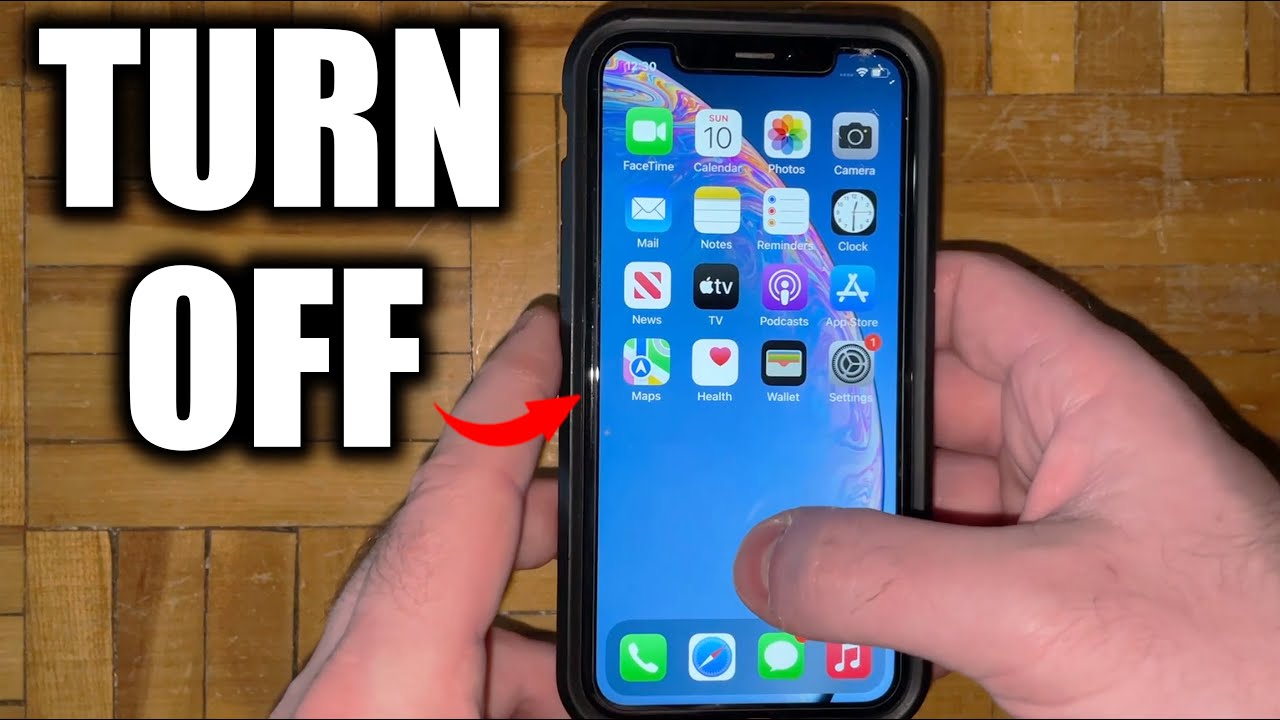
How to Turn Off iPhone: A Comprehensive Guide
Have you ever found yourself stuck, wondering how to turn off your iPhone? 🤔 It’s a common scenario that many users encounter. Whether you’re conserving battery life, troubleshooting, or simply taking a break from your device, knowing how to turn off your iPhone can be very beneficial. This guide will provide you with detailed steps, alternative methods, and complementary tools to enhance your experience. Read on to discover everything you need to know about turning off your iPhone!
Why You Might Want to Turn Off Your iPhone
There are several reasons why you might consider turning off your iPhone:
- Troubleshooting: If your phone is acting up, a reboot can often resolve issues.
- Battery Conservation: Turning off your phone when not in use can help save battery life.
- Privacy: If you need a break from notifications or calls, turning off your iPhone is a great solution.
Different Ways to Turn Off Your iPhone
Knowing how to turn off your iPhone depends on the model. Here are the most common methods:
Method 1: Using Hardware Buttons
For most iPhones, you can turn off your device using the hardware buttons:


- Press and hold the Side button and either the Volume Up or Volume Down button until the power off slider appears.
- Slide to power off.
Compared to older models, this method is more straightforward and combines the use of volume buttons for ease.
Method 2: Using Settings
If you prefer a more technical approach, you can turn off your iPhone via Settings:
- Open the Settings app.
- Scroll down and tap General.
- Scroll to the bottom and select Shut Down.
This method is particularly useful for users accustomed to navigating through settings, offering a sense of control over their device.
Method 3: Using AssistiveTouch
If you have difficulty using hardware buttons or touch functions, AssistiveTouch can help:
- Go to Settings > Accessibility > Touch > AssistiveTouch and enable it.
- Tap the floating button on your screen, then tap Device.
- Press and hold the Lock Screen icon until the slider appears, then slide to power off.
This method offers an accessible way to turn off your iPhone, showcasing Apple’s commitment to inclusivity with its device designs.
How to Turn Off Various iPhone Models
iPhone X and Later
For iPhone models starting from iPhone X, follow the previously mentioned Method 1, but ensure the buttons are pressed for a few seconds until the slider appears.
iPhone 8 and Earlier
- For iPhone 8 and 8 Plus, press and hold the Side button until the slider appears.
- For iPhone 7, press and hold the Volume Down and Side button simultaneously.
- For iPhone 6S and earlier, press the Home and Side buttons together.
Each method has a unique approach, but they all lead to the same, essential outcome: knowing how to turn off iPhone effectively!
What to Do When Your iPhone Won’t Turn Off
Sometimes, you may encounter issues where your iPhone refuses to turn off. If this happens, try the following tips:
- Force restart your iPhone by following the respective button combinations for your model.
- Ensure your iPhone is not stuck on an app or screen; try to exit all applications first.
- If the device still won’t turn off, you may need to check for any firmware issues or consider restoring the device via iTunes.
Using iTunes for Recovery
If your phone is unresponsive, using iTunes can help recover it:
- Connect your iPhone to your computer and open iTunes.
- Put your device into recovery mode using the hardware buttons.
- Once in recovery mode, iTunes will detect the device and offer options to restore.
Using iTunes not only allows you to reboot but also gives you a chance to back up your data, making it an effective tool in conjunction with learning how to turn off iPhone.
Top Complementary Tools to Enhance Your Experience
While knowing how to turn off your iPhone is essential, there are complementary tools that can further enhance your iPhone experience. Here are a few recommendations:
1. Battery Saver Apps
Apps like Battery Life can help monitor your iPhone’s battery performance and suggest optimal use to extend battery life. By using battery saver apps alongside your knowledge about how to turn off iPhone, you can improve your device’s longevity.
2. Device Management Tools
Consider utilizing Apple Support, which offers guidance, diagnostics, and troubleshooting tips, empowering you to manage your settings better alongside turning off your device when necessary.
- User-Friendly FAQs: Quick access to common questions provides instant solutions.
- Direct Contact: Chat with support agents for tailor-made assistance.
- Device Sync: Ensure all your Apple devices operate cohesively.
- Restoration Guides: Detailed steps for any malfunctioning device.
3. iCloud Services
Using iCloud can ensure your data is backed up securely. This is especially useful when you turn off your iPhone, allowing for easy restoration when you power it back on.
4. Updated Software Solutions
Regularly updating your iPhone’s software ensures that you’re not only aware of how to turn off iPhone properly but you’re also using the device’s latest features. Visit Apple’s website for the freshest updates.
5. Third-Party Cleaning Tools
Using apps that clean caches and optimize storage can boost performance and aid in the overall functioning of your device when rebooting for optimal management.
6. Virtual Assistants
Employing Siri can streamline your experience. Just say “Hey Siri, turn off my iPhone”, and you may just experience a smoother interaction.
7. Battery Health Monitoring Software
Battery health monitoring tools can help assess the battery’s condition. This allows you to decide the best times to turn off your iPhone when it’s low on battery, ensuring prolonged device use.
8. User Forums and Communities
Participating in user communities can provide insights into best practices concerning how to turn off iPhone, adding value through shared experiences and solution-oriented discussions.
- Evangelize Knowledge: Learn from the collective experiences of thousands.
- Insightful Tips: Access tricks often overlooked in official user guides.
- Real-Time Solutions: Quickly resolve issues with crowd-sourced fixes.
- Networking Opportunities: Build relationships with fellow iPhone users.
Best Practices for Powering Down Your iPhone
To make the most out of your iPhone experience, consider these best practices:
- Always save your work before powering down to avoid losing any progress.
- Regularly turn off your iPhone to give it a fresh start and improve device performance.
- Make use of “Do Not Disturb” more often rather than turning off your phone completely. This keeps you available while minimizing interruptions.
Exploring iPhone Alternatives in Power Management
While focusing on how to turn off iPhone, it’s also helpful to explore competitive power management options. For example, Android devices offer seamless power options with less navigation involved, specifically in ongoing settings. However, unlike iPhones, Android systems may not consolidate all features intuitively as Apple does. iPhones stand out for their simplicity and user-friendly interfaces.
Conclusion
Understanding how to turn off iPhone effectively can significantly enhance your overall experience, from troubleshooting to maximizing battery life. By leveraging complementary tools and utilizing the methods outlined in this guide, you’ll make an informed choice on when and how best to power down your device. Remember, being knowledgeable about your device empowers you—so take the time to practice these techniques!
Methods to Power Down Your iPhone
Turning off your iPhone can be crucial for various reasons—whether you’re saving battery life, troubleshooting issues, or giving your device a refresh. Understanding how to turn off iPhone effectively is essential for all users. In this guide, we’ll explore different methods you can use, enhancing your overall iPhone experience. 🔌
1. Using the Physical Buttons
The most common and straightforward way to turn off your iPhone is by using its physical buttons. Depending on your model, the method may slightly differ. Generally:
- Press and hold the Side button and either of the Volume buttons simultaneously until the slider appears.
- Slide to power off to turn off your device.
2. Using Settings to Power Down
Another method is through the Settings app, which provides a hassle-free way to shut down your iPhone.
- Open the Settings app.
- Scroll down to General.
- Scroll to the bottom and tap Shut Down.
This option is especially useful if you find the physical buttons unresponsive or difficult to use.
3. For Older iPhone Models
If you have an older iPhone, the process to turn off your device differs slightly. Instead of using the Side button, you will use the Top button. Here’s how:
- Press and hold the Top button until the slider appears.
- Slide to turn off.
4. What to Do if Your iPhone is Unresponsive
If your iPhone isn’t responding, you can force a restart as a last resort:
- For iPhone 8 and later, quickly press and release the Volume Up button, then the Volume Down button, and finally, press and hold the Side button until you see the Apple logo.
- For iPhone 7, press and hold the Volume Down and Side button simultaneously until the Apple logo appears.
- For iPhone 6s and earlier, press and hold the Home and Top (or Side) buttons together until you see the Apple logo.
5. Comparing Restart Options
While turning off your iPhone can be done through several methods, the simplest approach often ensures a seamless user experience. For instance, using the physical buttons is quick when you’re in a hurry. In contrast, utilizing settings offers clarity and ensures you’re navigating correctly through your device.
6. Complementary Tools and Apps to Enhance Usage
While learning how to turn off iPhone is essential, combining these techniques with complementary tools can significantly enhance your usage experience. Here are some useful tools that you might consider:
- Apple Support – Get direct assistance for your iPhone issues.
- Apple’s official guide for troubleshooting your device.
- Find My iPhone – Enhance security by locating your device if it’s lost.
- App Store – Discover apps that can streamline your iPhone usage.
7. Using Apple Support: A Secure Method
Engaging with Apple Support can provide tailored solutions if you’re facing challenges turning off your iPhone.
- Assess your device’s performance issues.
- Receive step-by-step guidance on transitioning your phone’s functions.
- Schedule a visit to your nearest Apple Store for in-person assistance.
- Get access to a community forum for users facing similar issues.
8. Leveraging Find My iPhone
Using Find My iPhone can help you secure your device effectively.
- Locate your iPhone if misplaced.
- Remotely lock and erase data for security.
- Enable notifications for any changes to your device’s status.
- Plan for future instances of lost devices with proactive measures.
9. Using Accessibility Settings
If you’re facing difficulties with button combinations, the accessibility features on iOS can help. AssistiveTouch allows you to access essential functions, including turning off your iPhone, without needing physical buttons.
- Enable AssistiveTouch via Settings > Accessibility > Touch > AssistiveTouch.
- Tap on the AssistiveTouch icon and select Device to shut down.
10. Why You Should Learn How to Turn Off Your iPhone
Understanding how to turn off your iPhone is vital for effective device management. Regularly powering down your device can help with performance issues, enhance battery life, and provide a clearer interface. The user experience can improve dramatically by embracing this simple yet significant practice.
Wrap Up
From utilizing physical buttons to navigating through settings, there are various methods to learn how to turn off iPhone. Incorporating tools like Apple Support and Find My iPhone can enhance your iPhone management, making it easier and more secure. By following the methods and tips outlined in this article, you can ensure that turning off your iPhone is as efficient as possible while maximizing your overall experience.
Utilizing Software Options for Shutdown
How to Turn Off iPhone: A Comprehensive Guide 🔌
Turning off your iPhone is a simple yet essential operation that can help refresh the device, save battery, and enhance its performance. Have you ever wondered if you’re doing it the most effective way? In this article, we’ll dive deep into various methods for turning off your iPhone, along with complementary tools that can enhance your device’s functionality. Let’s get started!
Understanding Why You Might Need to Turn Off Your iPhone
Before we jump into methods, let’s explore why you might want to turn off your iPhone. Users may face issues related to performance, software updates, or just the need to reboot their devices for various reasons. Turning off your iPhone can help refresh the system and often resolves minor glitches.
Common Reasons to Turn Off iPhone
- Performance Issues: Frequent slowdowns or app crashes can often be fixed by a simple restart.
- Software Updates: Certain updates require a reboot to finish installation.
- Battery Savings: When not in use for extended periods, turning off your iPhone can save battery life.
- Troubleshooting: When troubleshooting problems, restarting is a fundamental first step.
How to Turn Off iPhone: Step-by-Step Guide
For iPhone X and Later Models
For iPhone X and newer models, the process to turn off is slightly different. Follow these streamlined steps:
- Press and Hold: Press and hold the Side Button and one of the Volume Buttons simultaneously.
- Slide to Power Off: You’ll see the “slide to power off” slider appear. Slide it to the right.
- Wait for Shutdown: Wait a few seconds for the device to power down completely.
For iPhone 8 and Earlier Models
If you’re using iPhone 8 or older, the process is different:
- Press and Hold: Press and hold the Top Button until the “slide to power off” slider appears.
- Slide to Power Off: Slide the slider to the right.
- Restart: Wait until your iPhone turns off completely.
Using the Settings App to Turn Off iPhone
Another method to turn off your iPhone is via the Settings app. This can be particularly handy if buttons don’t respond as expected.
- Open Settings: Launch the Settings app on your iPhone.
- General: Scroll down and tap ‘General’.
- Shut Down: Scroll to the bottom and tap ‘Shut Down.’ You’ll see the “slide to power off” option.
- Slide: Slide to turn off your iPhone.
Complementary Tools and Features to Enhance Functionality
Turning off your iPhone can be effectively combined with certain tools and apps to maximize its performance. Here are some recommendations:
1. Battery Saver Apps
Utilizing battery saver applications (like Battery Doctor) can help monitor your battery usage. By managing your settings intelligently, these apps not only provide insights into your battery’s health but also encourage turning off your iPhone when appropriate.
2. Scheduled Rebooting Tools
Consider using an app like Scheduled Reboot to automate powering off your iPhone at specific times. Here’s how it enhances functionality:
- Consistency: Ensures your iPhone is regularly turned off, improving performance over time.
- Customization: Tailors reboots based on your daily routine.
- Battery Management: Maximizes battery life by ensuring optimal periods of inactivity.
- User-Friendly Interface: Easy navigation makes it accessible for all users.
3. Device Management Software
Software like iMazing lets you manage your iPhone’s content efficiently. It enhances your shutdown procedure by providing backup options, ensuring that your data is safe before powering off.
4. iCloud Backup
Before turning off your iPhone, back up your data with iCloud. This ensures you won’t lose crucial information. Visit iCloud for more info on backup procedures.
5. Performance Monitoring Apps
Apps like Cleanup Tool allow you to monitor your iPhone’s performance actively. Identifying issues can prompt users to turn off their devices to refresh functionality.
Potential Issues When Turning Off Your iPhone
While turning off your iPhone is usually straightforward, users can encounter issues. Awareness of potential problems can help mitigate user frustration.
Common Problems
- Device Not Responding: If your iPhone doesn’t turn off when prompted, try a force restart. For iPhone 8 and later, quickly press and release the Volume Up button, followed by the Volume Down button, and then press and hold the Side Button until you see the Apple logo.
- Stuck on Power Off Slider: If your iPhone shows the slider but doesn’t respond, leaving it alone for a few moments may let it power down.
Using Touch and Face ID When Shutting Down
Newer iPhone models feature Touch ID and Face ID, which add a level of security to powering off the phone. You’ll need to authenticate with your fingerprint or facial recognition before accessing your device settings, ensuring unwanted shutdowns are prevented.
Maintaining Your iPhone: Best Practices After Shutdown
Once you turn off your iPhone, it’s also a great time to consider maintenance practices that enhance its overall health. Some recommendations include:
- Software Updates: Always ensure you have the latest iOS version installed to enjoy new features and improvements.
- Storage Management: Regularly check your storage settings to delete unneeded files or apps.
- Security Checks: Utilize security features from both iOS and third-party apps to keep your data safe.
Conclusion
Understanding how to turn off your iPhone is an essential skill all users should master. Incorporating complementary tools such as battery savers, backup solutions, and device management applications can create a more holistic experience that enhances your iPhone’s performance. By turning off your iPhone wisely, you not only maintain optimal functionality but also prolong its lifespan. Consider applying the various strategies discussed to maximize your device’s user experience.
Rebooting vs. Turning Off Your iPhone
How to Turn Off iPhone: A Comprehensive Guide
Turning off your iPhone may seem straightforward, but knowing the most effective methods can enhance your user experience. Whether you’re troubleshooting a problem or simply need to save battery life, learning how to turn off iPhone properly is essential. 📱
Understanding the Need to Turn Off Your iPhone
There are various reasons why you might want to turn off your iPhone. For instance, powering down can help resolve unforeseen problems, improve battery longevity, or reset the device for updates. We’ll explore these reasons in detail and highlight the steps to execute them effectively.
The Basic Method: How to Turn Off iPhone
Here’s a straightforward method to turn off your iPhone:
- Press and hold the Side button and either the Volume Up or Volume Down button until sliders appear.
- Swipe the slider that says “Slide to Power Off.”
By following these steps, your iPhone will begin the shutdown process. If you find this method to be cumbersome, stay tuned for additional techniques below!
Using Settings to Power Off Your Device
Another way to turn off your iPhone is through the Settings app. This method is especially useful if your device is unresponsive.
- Open the Settings app.
- Scroll down and tap on General.
- Scroll all the way to the bottom and select Shut Down.
This straightforward approach ensures that your iPhone is powered off without needing physical button interaction.
Force Restarting Your iPhone
Sometimes, you may need to force restart your iPhone instead of turning it off and on. Here’s how:
- For iPhone 8 or later: Quickly press and release the Volume Up button, quickly press and release the Volume Down button, then press and hold the Side button until the Apple logo appears.
- For iPhone 7 and 7 Plus: Press and hold both the Volume Down and Sleep/Wake (Side) buttons until you see the Apple logo.
- For iPhone 6s and earlier: Press and hold both the Home and Sleep/Wake buttons until the Apple logo appears.
This method is excellent for resolving performance issues or unresponsive screens.
How to Use External Tools When Turning Off Your iPhone
Turning off your iPhone can be complemented by various tools to ensure optimal performance. Here are some recommendations:
- Use a battery health management app.
- Consider a cleaning utility to free up space before shutting down.
- Integrate personal assistant tools that help set reminders for managing your power usage effectively.
- Utilize sleep mode apps that track your usage and promote downtime.
1. Battery Health Management App
Apps like Apple’s official battery health tool allow you to monitor your battery status and gain insights on when it’s best to turn off your iPhone to prolong its lifespan.
2. Cleaning Utility
- Improve Performance: Regularly cleaning unwanted files enhances overall device speed.
- Free Up Space: Helps manage storage before shutting down.
- User-Friendly Interface: Most apps are intuitive and easy to navigate.
- Scheduled Maintenance: Set periodic reminders for when to use the app.
Consider downloading a cleaning utility from trusted sources such as the App Store.
3. Personal Assistant Tools
Using tools like Siri can help you manage tasks and set reminders to turn off your iPhone at the end of the day. This proactive step leads to healthier tech habits.
4. Sleep Mode Tracking Apps
Implement apps that encourage healthy phone usage before sleep time. By managing when your device is active or inactive, you cultivate better usage habits. Tools like Apple’s sleep schedule feature are integrated right into iOS for convenient management.
Turning Off iPhone: Important Tips to Remember
When powering off your device, consider these tips:
- Always save your work before shutting down.
- Check for updates to ensure a smoother restart.
- Regularly restart your phone to improve performance.
- Use Do Not Disturb mode as an alternative if you plan to take a break without turning off your device.
Understanding iPhone Power Cycle
The iPhone power cycle is the process of turning the device on and off periodically. Compared to many Android devices, iPhones typically have more streamlined processes. Understanding the power cycle helps users maintain longer battery life, and by learning how to turn off your iPhone, you promote a healthier device experience. But that’s not all…
Conclusion
Mastering how to turn off your iPhone is not just about powering it down to save battery. This process involves understanding its functionality, addressing common issues, and leveraging complementary tools that enhance utility. With the methods and tips shared in this guide, you can ensure optimal operation of your iPhone, prolong its lifespan, and enjoy a seamless user experience.
